
Pick the app that holds your UFC access
To watch UFC on a phone, install the official app for the service carrying the event where you are, sign in to the account with an active subscription, and select the correct live card. For U.S. fans in 2026, Paramount+ carries the live numbered events and Fight Nights. Your iPhone or Android phone is the screen; your subscription and location determine which fights it can play.
This guide was checked on October 19, 2026. Start with the country viewing guide if you are traveling or live outside the United States. The same app name can represent different rights in different countries. A working account at home does not establish that a title-fight Main Card is available during an overseas trip.
Also identify who sold you the subscription. A direct Paramount+ account, an Amazon Prime Video Channel and a television-provider benefit can use different sign-in routes. Use the existing purchase before accepting another offer on the phone. If you need the wider U.S. plan explanation, our Paramount+ UFC guide covers it.
Why the UFC app and Fight Pass are different choices
The official UFC app listing describes UFC Fight Pass, its fight library, original programs and live combat-sports offerings. Those features are valuable, but a UFC logo in the app store is not a guarantee that tonight’s U.S. UFC card streams there. Live availability and regional restrictions still apply.
Likewise, a UFC mobile game does not supply a broadcast subscription, and “free download” describes obtaining the software rather than receiving every fight without payment. A genuine app can be free to install while its videos require an active plan. Choose by the event’s current broadcaster and your existing account, rather than the first search result containing “UFC live.” That prevents spending the prelims registering for a different product when you already have the appropriate viewing service.
Set up an iPhone without paying again
Open the official Paramount+ App Store page and check compatibility with your iPhone. Install or update the app using the store. Device requirements change, so the current listing on your phone is more useful than an old guide’s minimum iOS version. Leave enough time for the download while you have a dependable connection.
Next choose sign-in for the account you already use. For a direct Paramount+ subscription, enter its email and password. If your access comes through a partner, follow that partner’s verification instructions or use its entitled app. Your Apple Account can authorize an app download or an Apple-billed purchase, but it does not automatically replace the streaming service’s own login.
If the app asks you to subscribe despite an existing payment, stop and check the receipt. Establish whether you purchased Paramount+ directly, an Amazon Channel, a provider benefit or something else. A second purchase on the iPhone can overlap with the subscription that already plays on your television. Recover the existing login or complete the appropriate connection before assuming another charge is necessary.
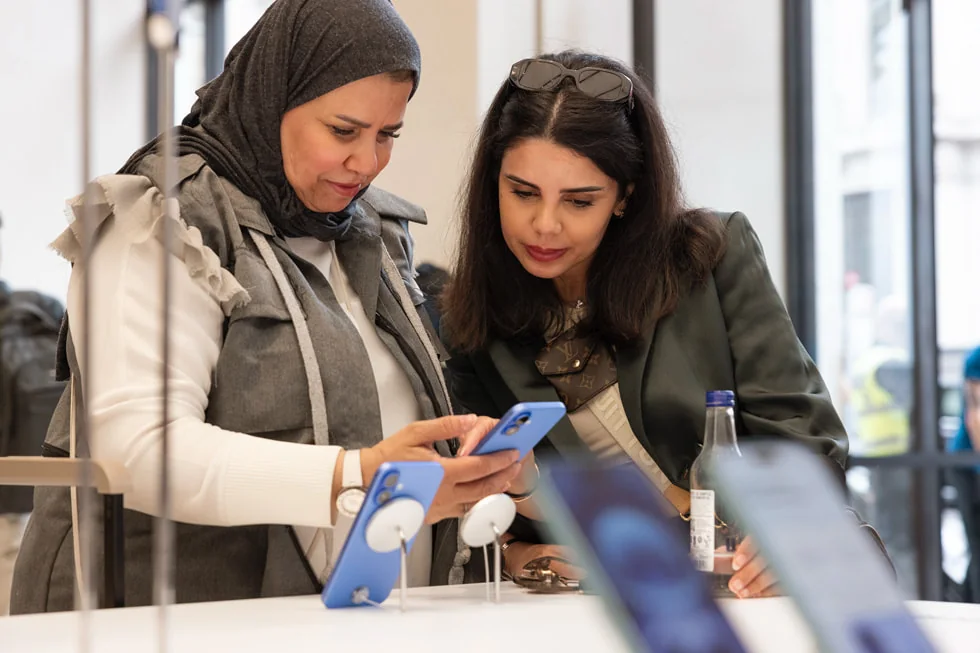
Once signed in, play an entitled video with sound and locate the upcoming UFC card. If you plan to watch away from Wi-Fi, check iPhone Settings under Cellular or Mobile Data and confirm the streaming app is allowed to use that connection. Apple explains that an app with cellular data disabled uses Wi-Fi only. A successful home test therefore does not establish that the app will play after you leave home.
Finally, check headphone or speaker output, adjust brightness for the room and keep charging available. These checks are worth doing on the actual phone you will watch, especially if it normally routes audio to a car or another Bluetooth device. They give you a useful starting point if the live picture appears but you cannot hear the commentary.
Set up an Android phone from Google Play
Use the official Paramount+ Google Play listing for a compatible Android phone. Check the app name, publisher and device compatibility, then install or update it. A search for an APK is not a necessary step for a normal supported Google Play installation, and a different app promising UFC does not establish that it has the live rights you need.
For an existing direct subscription, open the app and sign in with the Paramount+ account. The UFC Android instructions distinguish that from signing up for a new plan. Your Google account manages Play Store activity; the streaming login identifies the viewing account. If a purchase was billed through Google Play, check that billing record when diagnosing a subscription problem, but do not assume that choosing a different Google account creates the missing UFC entitlement.
Before the event, check for updates in Google Play. Google’s app-update instructions use the profile menu and Manage apps and device; the exact presentation can vary. Updating the streaming app is different from updating Google Play itself or installing an Android system update. Finish any restart before you intend to watch the live prelims.
If playback works on Wi-Fi but fails on mobile data, inspect the phone’s connection and app data settings. Android menus vary by manufacturer. Data Saver primarily limits background mobile data, so do not assume that enabling it automatically prevents every foreground video. Check what the setting actually allows on your model, keep the player in the foreground during your test, and confirm that the carrier connection has data available.
Locate the UFC event on that same phone and test audio using the headphones you plan to wear. If several people share the device, confirm the correct streaming account remains signed in after the update. Avoid deleting app data or reinstalling it as a first move during a live bout: either action may require signing back in. Establish the login first, then use more disruptive steps only when the simpler checks fail.
Choose the live card and protect your viewing time
Search using the event number or headliners and confirm the date against UFC tonight. Open the actual live event rather than a highlight, Countdown episode, weigh-in or older fight with one of the same athletes. Read the complete title before pressing play. A short video that works can still be the wrong program for your evening.
Check language and coverage stage where the service offers separate versions. A phone’s narrow screen can truncate a long title, making similar event tiles harder to distinguish. Open the detail view and read the available information rather than choosing by thumbnail alone. Save the correct listing if the app offers that option, and check it again on event day.
Preliminary start times are different from the main event
A card’s earliest bouts, Prelims and Main Card can have different advertised starts. The main event is the final bout; the Main Card is the group of fights containing it. If you want to follow a particular preliminary fighter, use the start for that portion of the card. Joining at the Main Card start can mean missing the bout entirely.
The last walkout time is less predictable. Previous bouts may end early, go the full distance or involve stoppages and production delays. Set a reminder in your UFC calendar with enough margin to join before the fight you care about. Recheck the time zone, especially for international cards that take place during the U.S. morning or afternoon.
If watching with a delay, reduce notification previews and avoid opening social feeds that may reveal the outcome before your stream reaches it. A full-event replay, individual fight and highlights package are different viewing choices. Use rewind or start-over only when the current player offers it; do not assume every live stream can be downloaded, paused indefinitely or resumed identically after another app takes focus. Leave the fight results until after you finish if preserving the suspense matters.
Plan for mobile data, battery and heat
Plan for the full viewing session, not just the headliner. Watching preliminary bouts and a Main Card keeps the screen, connection and video player working for much longer than checking a short highlight. Charge beforehand, keep a suitable cable or battery pack available, and decide whether you will stay on Wi-Fi or use cellular data.
Avoid relying on a universal “gigabytes per UFC card” estimate. Data use depends on picture quality, stream behavior and how long you watch; the card’s duration also varies. Check the carrier’s allowance, any speed reduction after a threshold and roaming terms before choosing a cellular connection for the entire evening. Apple and Android provide per-app usage information, while your carrier’s account is the place to check the amount counted for billing.
If the streaming app offers a mobile-quality control, review it before the card and choose a setting suitable for your data allowance. The option and its effect depend on the app version, so use the controls actually displayed rather than hunting for an invented “UFC data saver” button. A lower setting can be a sensible tradeoff on a small screen, but it cannot fix an account that lacks the event.
Long video sessions can also warm a phone. Apple’s temperature guidance identifies high-quality streaming as one activity that can make a device feel warm; Google’s Pixel guidance similarly discusses media playback. Keep the phone out of direct sunlight and avoid covering it while watching or charging. If it displays a temperature warning, follow the manufacturer’s cooling instructions rather than repeatedly reopening the player.
Do not confuse live streaming with offline viewing. You cannot download a fight before it happens, and an app offering downloads for some on-demand programs does not guarantee a downloadable live UFC card. If your connection will be unreliable, decide in advance whether you can move to a dependable network or watch an available replay later. A planned switch between bouts is easier than improvising during the final round of the fight you most wanted to see.
Cast UFC from your phone to a television
Test casting before fight night if the television will be your main screen. Successful playback on a phone establishes only the phone’s working stream; the receiving device also needs a supported setup. First make sure the event plays on the phone, then test the connection to the television. That separates an account problem from a device-discovery problem.
Use Google Cast with the same Wi-Fi network
UFC’s Paramount+ Chromecast instructions describe using the latest mobile app and a compatible receiver on the same Wi-Fi network. Open the app, use its Cast control, select the intended television or receiver and start the video. The Cast control may be in different places depending on the app and version; use the one actually displayed rather than following a screenshot from a different device.
If the receiver is missing, compare the network on both devices. A phone using cellular data or a separate guest network may not discover the television. On an iPhone, also check that the streaming app has Local Network permission: Google’s discovery guidance explains why that permission matters. On Android, check that the phone has not automatically moved to another isolated network. Reopen the app after correcting the connection and look for the receiver again.
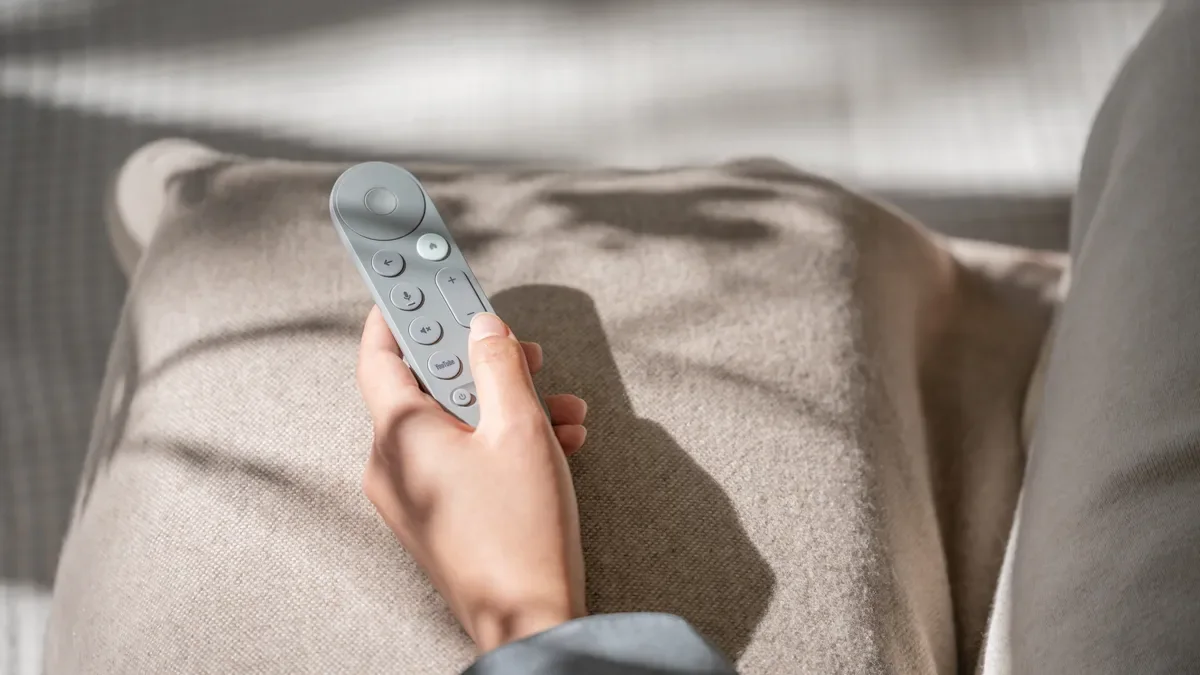
Check AirPlay support before relying on screen mirroring
For an iPhone and an AirPlay-compatible television or Apple TV, use the video app’s AirPlay option when it is available and supported. Apple’s AirPlay guidance starts with the same Wi-Fi network and selecting the receiving screen, but also notes that some video apps do not support AirPlay. Treat compatibility as something to confirm for your app, device and event.
Screen mirroring is a different choice from an app’s native video-casting control. Showing the phone’s menus on a television does not establish that a protected live stream will also display correctly. If the menu mirrors but the fight is black, stop treating that as proof you need another subscription. Try the supported app on the television or a compatible streaming player using your existing entitled account.
After connecting, check the television’s picture and sound, not just the phone’s connection icon. Know how to disconnect and return to the phone if necessary. Keep the working route available while diagnosing a failed one, and use our UFC streaming fixes for the wider device checks.
Fix phone playback with a short diagnostic sequence
Begin by describing what fails. A sign-in rejection, a missing event, a request to subscribe, a frozen picture and a missing television receiver are different problems. That distinction saves time: reinstalling an app does not establish rights in a different country, and changing the Wi-Fi network does not repair a password that the service rejects.
For a visible event that will not play, close and reopen the app, then test another entitled video. Check for an app update and restart the phone if needed. Apple’s app troubleshooting sequence puts these checks ahead of deleting and downloading the app again. Keep your login available before any step that could sign you out.
Next compare connections. If your data allowance permits it, test the same phone on Wi-Fi and cellular separately. Google’s Android connection guidance uses that comparison to identify network problems. On iPhone, check the streaming app’s cellular permission as well. A service that works on one route and fails on another gives you a more specific problem to investigate than “UFC is broken.”
If the phone plays correctly but casting fails, return to the receiver, same-network and local-permission checks. If the television plays the event but the phone cannot, focus on the phone’s account, app and connection. Preserve the screen that works while investigating the other. During a live card, that practical fallback is often more useful than making several disruptive changes at once.
For support, save the exact event title, error message, country, phone model, operating-system version, app version and the result of your other-device test. Explain who bills the subscription, without sending passwords or payment-card details. Our UFC playback troubleshooting guide covers the broader cases. Once the stream is restored, return to the correct card and coverage stage rather than assuming the app resumed exactly where you left it.
Fight talk
Comments